Entity Framework

  1. Overview
    1. Entity Framework (EF) is an object-relational mapper (ORM) that enables .NET apps to work with relational data using domain-specific objects
    2. EF allows the programmer to access and modify objects that are automatically persisted in a relational database without having to write any of the database code
    3. Many popular relational databases are supported including SQL Server, SQLite, MySQL, etc.
    4. Most recent version of EF is called EF Core
    5. Tutorial: Getting Started with EF Core
  2. Project setup
    1. Create a Blank App (Universal Windows) project called EntityFrameworkDemo
    2. Use NuGet Package Manager to install Microsoft.EntityFrameworkCore.Sqlite version 3.1.10 (latest version will not work with UWP)
  3. Data Model
    1. Create a project folder called Models
    2. Add a class to Models called MovieTheaterContext
    3. Make new class inherit DbContext
      1. A DbContext instance represents a database session and is used to query and save entity instances
      2. Overrides OnConfiguring(), which configures the database. DbContextOptionsBuilder carries configuration information for DbContext and provides methods to select a database like UseSqlServer() or UseSqlite()
      3. Creates DbSet for each entity, which maps to a database table
    4. Example MovieTheaterContext class creates a DbSet of Movie objects to store a list of movies; uses Sqlite database
      using Microsoft.EntityFrameworkCore;
      
      namespace EntityFrameworkDemo.Models
      {
          public class MovieTheaterContext : DbContext
          {
      		// Binds to Movies table 
              public DbSet<Movie> Movies { get; set; }
      
              protected override void OnConfiguring(DbContextOptionsBuilder optionsBuilder)
              {			
                  optionsBuilder.UseSqlite("Data Source=theater.db");
              }
          }
      }
      
    5. Add Movie class to Models folder
      1. Public properties define columns of Movies table
      2. Implements INotifyPropertyChanged to support UI data binding
    6. using System.ComponentModel;
      
      namespace EntityFrameworkDemo.Models
      {
          // All public properties of Movie are converted into table columns
          public class Movie : INotifyPropertyChanged
          {
              // Public property that uses "Id" is the primary key
              public int Id { get; set; }
      
              private string title;
              public string Title
              {
                  get
                  {
                      return title;
                  }
                  set
                  {
                      title = value;
                      OnPropertyChanged(this, new PropertyChangedEventArgs("Title"));
                  }
              }
      
              private string rating;
      
              public string Rating
              {
                  get
                  {
                      return rating;
                  }
                  set
                  {
                      rating = value;
                      OnPropertyChanged(this, new PropertyChangedEventArgs("Rating"));
                  }
              }
      
              public event PropertyChangedEventHandler PropertyChanged;
      
              private void OnPropertyChanged(object sender, PropertyChangedEventArgs e)
              {
                  PropertyChanged?.Invoke(sender, e);
              }
          }
      }
      
    7. More info: Creating and configuring a Model
  4. Create the database
    1. MovieTheater.UWP - Blank App (Universal Windows) project
    2. Add reference to data model in App.xaml.cs
    3. Use using statement with DbContext to ensure correct use of IDisposable objects
    4. Call DbContext.Database.EnsureCreated() when the app starts to create the database if it doesn't exist
      // App.xaml.cs
      
      using EntityFrameworkDemo.Models;
      ...
      
      namespace MovieTheater.UWP
      {
      	sealed partial class App : Application
          {
      		public App()
      		{
      			this.InitializeComponent();
      			this.Suspending += OnSuspending;
      
      			using (var db = new MovieTheaterContext())
      			{
      				// Create database 
      				db.Database.EnsureCreated();
      			}
      		}
      		...
      	}
      }
      
  5. MainPage.xaml - Display movies in ListView
    1. <Page
          x:Class="EntityFrameworkDemo.MainPage"
          xmlns="http://schemas.microsoft.com/winfx/2006/xaml/presentation"
          xmlns:x="http://schemas.microsoft.com/winfx/2006/xaml"
          xmlns:local="using:EntityFrameworkDemo"
          xmlns:d="http://schemas.microsoft.com/expression/blend/2008"
          xmlns:mc="http://schemas.openxmlformats.org/markup-compatibility/2006"
          mc:Ignorable="d"
          Background="{ThemeResource ApplicationPageBackgroundThemeBrush}">
      
          <StackPanel>
              <TextBox Name="Title" PlaceholderText="Title" Width="200" HorizontalAlignment="Left"/>
              <ComboBox Name="ratingComboBox" Width="100" HorizontalAlignment="Left" SelectedIndex="1">
                  <x:String>G</x:String>
                  <x:String>PG</x:String>
                  <x:String>PG-13</x:String>
                  <x:String>R</x:String>
              </ComboBox>
              <Button Click="addButton_Click" Width="100" HorizontalAlignment="Left">Add</Button>
              <ListView Name="movieListView" Width="200" HorizontalAlignment="Left">
                      <ListView.ItemTemplate>
                          <DataTemplate>
                              <StackPanel>
                                  <TextBlock Text="{Binding Title}" FontWeight="Bold" />
                                  <TextBlock Text="{Binding Rating}" />
                              </StackPanel>
                          </DataTemplate>
                      </ListView.ItemTemplate>
              </ListView>
      
              <Button x:Name="deleteButton" Content="Delete Movie" Click="deleteButton_Click" />
              <Button x:Name="updateButton" Content="Update Movie" Click="updateButton_Click" />
      
          </StackPanel>
      </Page>
      
  6. Implement CRUD operations in MainPage.xaml.cs
    1. Read all movies in OnNavigatedTo()
      using EntityFrameworkDemo.Models;
      using System.Linq;
      using Windows.UI.Xaml;
      using Windows.UI.Xaml.Controls;
      
      namespace EntityFrameworkDemo
      {
          public sealed partial class MainPage : Page
          {
      		private ObservableCollection<Movie> movieList;
      		
              public MainPage()
              {
                  this.InitializeComponent();
              }
      
              protected override void OnNavigatedTo(NavigationEventArgs e)
              {
                  base.OnNavigatedTo(e);
                  
                  // Add all movies from database to movieList
                  using (var db = new MovieTheaterContext())
                  {
                      movieList = new ObservableCollection<Movie>();
                      foreach (var movie in db.Movies)
                      {
                          movieList.Add(movie);
                      }
                  }
      
                  // Use data binding to display movies in ListView
                  movieListView.ItemsSource = movieList;            
              }
          }
      }
      
    2. Add a new movie
      private void addButton_Click(object sender, RoutedEventArgs e)
      {
          using (var db = new MovieTheaterContext())
          {
      		// Add new movie to database
              var movie = new Movie
              {
                  Title = Title.Text,
                  Rating = ratingComboBox.SelectedValue as string
              };
              db.Movies.Add(movie);
              db.SaveChanges();
      
              // Add to ListView 
              movieList.Add(movie);
          }
      }
      
    3. Update the selected movie
      private void updateButton_Click(object sender, RoutedEventArgs e)
      {
          // Change selected movie to Tron - PG
          if (movieListView.SelectedIndex > -1)
          {
              using (var db = new MovieTheaterContext())
              {          
                  // ListView automatically updated when properties are changed
      			var selectedMovie = movieListView.SelectedItem as Movie;
                  selectedMovie.Title = "Tron";
                  selectedMovie.Rating = "PG";
      
                  // Update database
                  db.Movies.Update(selectedMovie);
                  db.SaveChanges();
              }
          }
      }
      
    4. Delete the selected movie
      private void deleteButton_Click(object sender, RoutedEventArgs e)
      {   
      	// Delete selected movie 
          if (movieListView.SelectedIndex > -1)
          {
              using (var db = new MovieTheaterContext())
              {
      			// Delete selected movie from database 
                  var selectedMovie = movieListView.SelectedItem as Movie;
                  db.Movies.Remove(selectedMovie);
                  db.SaveChanges();
      
                  // Remove from ListView
                  movieList.Remove(selectedMovie);
              }
          }
      }
      
  7. Viewing database data
    1. Run the app and add some movies
    2. theater.db is created in C:\Users\USER\AppData\Local\Packages\KEY\LocalState
    3. DB Browser for SQLite can examine and modify the contents of a .db file
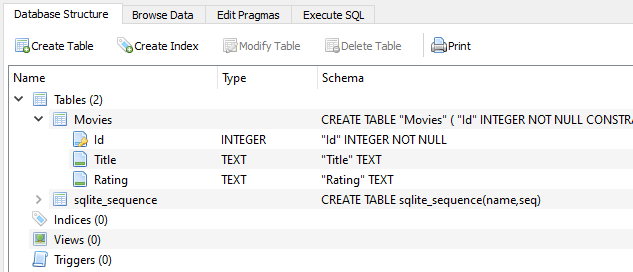
    4. Open theater.db in DB Browser for SQLite to see Movies table

      Screenshot of DB Browser for SQLite showing Movies table with columns Id, Title, Rating.
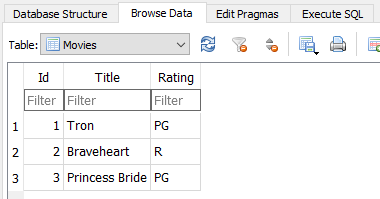
    5. Browse data - Id column is auto-incremented

      Screenshot of DB Browser for SQLite showing Movies table with rows '1, Tron, PG', '2, Braveheart, R', '3, Princess Bride', PG'.